Install sopcast on ubuntu from http://linuxtoy.org/archives/gtk_sopcast.html(.deb package)
If required you might also have to install libstdc++5
It works perfectly well on my Ubuntu 9.10 laptop.
You can use VLC media player to play the video by changing the settings.
Wednesday, November 4, 2009


Saturday, October 3, 2009
Evince: Open encrypted pdf documents
Evince is an all-in-one document reader to read pdf, ps, eps, dvi documents.
Advantages:
1) Loads faster than most pdf readers
2) Reads encrypted pdf documents (allows you to print protected documents)
3) Reads most of my normally used documents (specially when using Latex)
Do try it. It comes automatically with most linux (gnome) distributions.
Advantages:
1) Loads faster than most pdf readers
2) Reads encrypted pdf documents (allows you to print protected documents)
3) Reads most of my normally used documents (specially when using Latex)
Do try it. It comes automatically with most linux (gnome) distributions.
Friday, October 2, 2009
Ubuntu: Faster bootup and performance
Unlike a server one does not need a lot of services to be running in the background on a laptop. The best way to speed up the boot time and performance on a ubuntu laptop will be to use the Boot-Up Manager.
You can install it by:
sudo apt-get install bum
In my laptop I disabled the following services which I do not use and I gained at least 8 seconds of boot up time. System wake up from sleep is also faster.
Service disabled:
stop-bootlogd
rsync
pppd-dns
cron
hotkey-setup
dns-clean
jetty
cups
apmd
atd
klogd
saned
bootlogd
sysklogd
bluetooth
You can install it by:
sudo apt-get install bum
In my laptop I disabled the following services which I do not use and I gained at least 8 seconds of boot up time. System wake up from sleep is also faster.
Service disabled:
stop-bootlogd
rsync
pppd-dns
cron
hotkey-setup
dns-clean
jetty
cups
apmd
atd
klogd
saned
bootlogd
sysklogd
bluetooth
Sunday, August 30, 2009
Beautify your GNOME desktop
There seems to be couple of ways you can make your gnome desktop look fancy and pleasing to the eyes without actually using compiz effects. I do not personally prefer those desktop effects since they suck in a lot of battery on my laptop. They might be well suited for desktops.
1) Install MAC like window manager.
Installation: sudo apt-get install awn-manager awn-applets-c-core awn-applets-c-extras

You do require to activate composite manager on your desktop for this to work.
Open gconf-editor --> apps --> metacity --> general --> compositing manager (select this option).
2) Another nice addition would be gnome screenlets.
Installation: sudo apt-get install screenlets

The editor is straight forward to use and the screenlets add a nice feel to your desktop
1) Install MAC like window manager.
Installation: sudo apt-get install awn-manager awn-applets-c-core awn-applets-c-extras

You do require to activate composite manager on your desktop for this to work.
Open gconf-editor --> apps --> metacity --> general --> compositing manager (select this option).
2) Another nice addition would be gnome screenlets.
Installation: sudo apt-get install screenlets

The editor is straight forward to use and the screenlets add a nice feel to your desktop
Friday, August 7, 2009
ZIM: Desktop Wiki / Personal Wiki
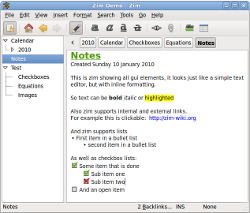
Zim is a local personal Wiki for your desktop.
I find it very useful to quickly noting down all those tricky/petty details which I keep forgetting, but use often. Every time I forget something trivial...hold on, it is on my wiki!!
Specially program templates. When writing a new code I always know that I had written something similar sometime back, but cannot figure out in which folder I have that old code.
Now-a-days I don't have that problem. Zim comes to my rescue every time!
I would say it is a must try for any computational guy.
Subscribe to:
Posts (Atom)