Namebench searches for faster DNS for your IP. It will help improve your internet look up speeds considerably. You will visibly see faster browsing speeds. Try it out.
Install:
sudo apt-get install namebench
Then open a terminal to run
namebench
This will take a few minutes (5-10 mins). The results will show up on your browser.
To change your DNS servers, rightclick on network connection icon > edit connections > wireless/wired > your connection name > edit > ipv4 settings > Automatic (DHCP) address only .
Then copy the primary secondary and tertiary DNS ids from the browser to the three corresponding lines in the ipv4 settings menu window.
Apply and you are done.
Now restart network manager
sudo /etc/init.d/network-manager restart
Enjoy faster browsing.
Sunday, June 12, 2011


Saturday, October 9, 2010
PDFmod
PDFmod is a simple tool with GUI to modify your pdf documents.
You can:
1) Rearrange pages of a pdf file
2) Combine two pdf files
3) Delete pages from pdf file
4) Rotate required pages
For more advanced exhaustive set of tools look at PDFtk (PDF tool kit).
PDFedit is an advanced editor which allows you to edit text in pdf files.
All the above softwares can be installed through package managers.
Saturday, August 21, 2010
Safely store your passwords
If you are like me, scared of storing passwords online and looking for a safe way to store (remember) your passwords in your own machine, openssl offers a way.
1) Create a text file (eg name: passwords) with your passwords:
For eg.
google.com abcdef
blogger 123pqr
....
2) Encrypt using openssl
# encrypt
openssl aes-256-cbc -a -salt -in passwords -out passwords.enc
When prompted enter a master password
REMEMBER the master password at all times.
3) REMEMBER to remove the passwords text file !
rm -f passwords
3) Decrypt when needed
# decrypt
openssl aes-256-cbc -d -a -in passwords.enc -out passwords
That's it! Securely store your passwords and never worry about forgetting passwords again.
Sunday, May 16, 2010
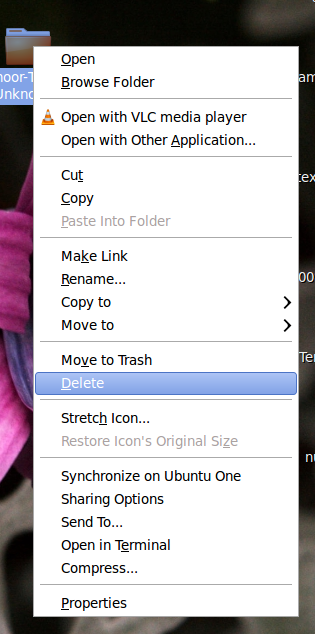
Don't Trash, Delete
Sometimes you might want to delete a file directly (like command line "rm") instead of moving it to trash.
To add that option in Gnome Nautilus file manager you can goto:
Places > Home Folder > Edit > Preferences > Behavior > Trash > Include Delete option.
Now you will get an additional delete option when you right click on a file/folder:
Gnome Gmail
If you would like to make Gmail your default Email Client in Gnome instead of "Evolution" or "Thunderbird", then you can use "Gnome Gmail"
After installing goto System > Preferences > Preferred Applications > Internet > Mail Reader
You will get a "Gmail" Option:

Now when you click on an email-link, your browser will open Gmail.
Test this link : abc@gmail.com
Friday, May 14, 2010
Mobile Media Converter
There are numerous applications to convert (audio, video) media files to different formats. There are command line options as well. These can be cumbersome to use at times.
Mobile Media Converter is an excellent application to simplify the task.
It has a neat user interface and it is very easy to use.

Download and try it.
Monday, March 29, 2010
Gnome: Mail notification
If you have the habit of checking your mail (specially Gmail) too often, then you should try mail-notification. It will notify if you have a mail on your desktop panel. You can set it up to show all your mail accounts on your desktop.


Saturday, March 13, 2010
SSH: Login Without Password
Just have this in mind:
You need to have static IP/host-name on both machines for this to work
In machine F:
To create a public key for F, use the command: ssh-keygen -t rsa.
When prompted for paraphrase just click enter.
The created public key will be ~/.ssh/id_rsa.pub.
In machine T:
Copy the contents of this (id_rsa.pub) file to ~/.ssh/authorized_keys2 file in machine T.
If the folder .ssh does not exist, create it.
If the file authorized_keys2 does not exist, create it.
That's it!
Sunday, January 24, 2010
Keyjnote: Great PDF presentation tool
If you use Adobe Reader to present your pdf, then you should try KeyJnote/Impression. It is a python script for adding eye candy to your presentation.
If you are interested check out a few youtube videos to see what it can do.
You can install it through your package manager. Search for "keyjnote".
After installation just type:
keyjnote pdf_file_name.pdf
During the presentation try pressing the following:
1) Enter - spotlight
2) Tab - slide arrangement
3) b - black screen
4) w - white screen
5) t - timer
6) z - zoom (where your mouse points)
7) q - quit
There are more commands on their website.
Using a simple .info script you can add more slide transition features.
Name your script as "pdf_file_name.pdf.info". Add the following for each slide in your pdf.
PageProps = {
1: {
'title': "slide1",
'transition': PagePeel,
},
2: {
'title': "slide2",
}
.......
}
Ubuntu: Synaptic without password
WARNING: It is not good practice to avoid entering passwords for applications. If you feel lazy (like me) do this, but only on your laptop. Do not use this on desktops, specially servers.
To use synaptic package manager without having to enter password you just need to add a line to /etc/sudoers file. Add the following line at the end of the file.
username ALL=NOPASSWD: /usr/sbin/synaptic
"username" - is your username on the machine.
You can do the same to run any other application without having to enter your password.
e.g. You can add the following line to make application gshutdown work without password
username ALL=NOPASSWD: /usr/bin/gshutdown
Thursday, January 14, 2010
Python: Add segment name to a .pdb file
Some times it is easier to view .pdb files with segment names in viewers like VMD.
Here is a python script you can use to add segment IDs to a .pdb file.
add_segid.py - Download
add_segid.py - View
Saturday, December 19, 2009
Timed Shutdown: Gshutdown
I recently found a nice GUI option for shutdown command - gshutdown.
Though I still prefer the elegant command line option, the GUI feature does make it more usable.
It is available through package manager in ubuntu 9.10.
sudo apt-get install gshutdown
You can add it to your panel(from Applications > Accessories) and run it as root.
The below image are my settings from its icon properties:

Its auto detect features did not work for me so I manually defined commands
for shutdown and reboot.
My custom command for shutdown is as below:

Though I still prefer the elegant command line option, the GUI feature does make it more usable.
It is available through package manager in ubuntu 9.10.
sudo apt-get install gshutdown
You can add it to your panel(from Applications > Accessories) and run it as root.
The below image are my settings from its icon properties:

Its auto detect features did not work for me so I manually defined commands
for shutdown and reboot.
My custom command for shutdown is as below:

Wednesday, December 9, 2009
GNOME: Resume from suspend without password
When you resume your laptop from suspend/hibernate, Gnome usually asks for your password. This feature can be annoying in a single user laptop computer.
To change this setting open gconf-editor.
If you don't have it, install using your package manager (sudo apt-get install gconf-editor).
apps > gnome-power-manager > lock
Unselect all selected options. My setting looks as in the figure.

To change this setting open gconf-editor.
If you don't have it, install using your package manager (sudo apt-get install gconf-editor).
apps > gnome-power-manager > lock
Unselect all selected options. My setting looks as in the figure.

Monday, November 23, 2009
GRACE: Best 2D Plotting Software?
Do not get fooled by the bad looks of Grace; When it comes to functionality, it doesn't get better than this.
I am still a fan of gnuplot, but in 2D plotting grace beats gnuplot hands down.
It will do anything you want in a 2D plot - integration, differentiation, correlation, linear and non-linear curve-fitting....you name it.
You can also use scripting to automate the plotting. In my opinion, the ideal plotting software, specially for linux users.
Fedora, Ubuntu, Debian and most distros have it in their repository.
Just search for grace in your package manager.
I am still a fan of gnuplot, but in 2D plotting grace beats gnuplot hands down.
It will do anything you want in a 2D plot - integration, differentiation, correlation, linear and non-linear curve-fitting....you name it.
You can also use scripting to automate the plotting. In my opinion, the ideal plotting software, specially for linux users.
Fedora, Ubuntu, Debian and most distros have it in their repository.
Just search for grace in your package manager.
Saturday, November 21, 2009
Multi-finger Touchpad in Linux
Most notebook touchpads will support multitouch (Mac like) features in linux.
Touchpads do not need hardware enhancements, but just need software drivers to activate the feature on your laptop.
NOTE: Some Sony laptops may not work with gsynaptics. Sony sometimes use their own native hardwares which are not supported in linux.
In linux "gsynaptics" package does the trick.
You can even enable n-finger functionalities if you are interested enough (just google multi finger touchpad for linux).
The two-finger scroll features are default features with gsynaptics.
You can install it by apt-get :
sudo apt-get install gsynaptics
Goto System > Preferences > Mouse Preferences (or) Touchpad
to enable all the features you need.
In systems older than ubuntu 9.10 you might have to add a line to your /etc/X11/xorg.conf.
(It is a good idea to backup before you make the change)
Add the following line to xorg.conf under the section: Section "InputDevice"
Option "SHMConfig" "on"
Then you need to restart your X11 by:
# sudo /etc/init.d/gdm restart
The pinch and zoom-out features (seen in i-phone) are patented by Apple and so cannot be implemented in linux.
In older linux systems (If you get errors):
1) Create a system file and add few lines to it:
sudo gedit /etc/hal/fdi/policy/shmconfig.fdi
2) Add the following lines to the file:
click here
3) Reboot the computer.
Now your SHMConfig should be enabled.
You will be able to edit your mouse settings from the "touchpad" menu.
Touchpads do not need hardware enhancements, but just need software drivers to activate the feature on your laptop.
NOTE: Some Sony laptops may not work with gsynaptics. Sony sometimes use their own native hardwares which are not supported in linux.
In linux "gsynaptics" package does the trick.
You can even enable n-finger functionalities if you are interested enough (just google multi finger touchpad for linux).
The two-finger scroll features are default features with gsynaptics.
You can install it by apt-get :
sudo apt-get install gsynaptics
Goto System > Preferences > Mouse Preferences (or) Touchpad
to enable all the features you need.
In systems older than ubuntu 9.10 you might have to add a line to your /etc/X11/xorg.conf.
(It is a good idea to backup before you make the change)
Add the following line to xorg.conf under the section: Section "InputDevice"
Option "SHMConfig" "on"
Then you need to restart your X11 by:
# sudo /etc/init.d/gdm restart
The pinch and zoom-out features (seen in i-phone) are patented by Apple and so cannot be implemented in linux.
In older linux systems (If you get errors):
1) Create a system file and add few lines to it:
sudo gedit /etc/hal/fdi/policy/shmconfig.fdi
2) Add the following lines to the file:
click here
3) Reboot the computer.
Now your SHMConfig should be enabled.
You will be able to edit your mouse settings from the "touchpad" menu.
Saturday, November 14, 2009
Google Chrome for Linux
Chrome browser in my Ubuntu 9.10 laptop is much faster and lighter than Firefox.
I am a big Firefox fan, but lately it has become so heavy that I had to try some other lighter browser. Chrome works without any crashes for me so far.
Chrome may not be as safe as Firefox, but for everyday-browsing it is perfect.
I still use Firefox to check my bank accounts.
For installation on Ubuntu follow:
I am a big Firefox fan, but lately it has become so heavy that I had to try some other lighter browser. Chrome works without any crashes for me so far.
Chrome may not be as safe as Firefox, but for everyday-browsing it is perfect.
I still use Firefox to check my bank accounts.
For installation on Ubuntu follow:
http://www.google.com/chrome
Wednesday, November 4, 2009
Sopcast on Ubuntu
Install sopcast on ubuntu from http://linuxtoy.org/archives/gtk_sopcast.html(.deb package)
If required you might also have to install libstdc++5
It works perfectly well on my Ubuntu 9.10 laptop.
You can use VLC media player to play the video by changing the settings.
If required you might also have to install libstdc++5
It works perfectly well on my Ubuntu 9.10 laptop.
You can use VLC media player to play the video by changing the settings.
Saturday, October 3, 2009
Evince: Open encrypted pdf documents
Evince is an all-in-one document reader to read pdf, ps, eps, dvi documents.
Advantages:
1) Loads faster than most pdf readers
2) Reads encrypted pdf documents (allows you to print protected documents)
3) Reads most of my normally used documents (specially when using Latex)
Do try it. It comes automatically with most linux (gnome) distributions.
Advantages:
1) Loads faster than most pdf readers
2) Reads encrypted pdf documents (allows you to print protected documents)
3) Reads most of my normally used documents (specially when using Latex)
Do try it. It comes automatically with most linux (gnome) distributions.
Friday, October 2, 2009
Ubuntu: Faster bootup and performance
Unlike a server one does not need a lot of services to be running in the background on a laptop. The best way to speed up the boot time and performance on a ubuntu laptop will be to use the Boot-Up Manager.
You can install it by:
sudo apt-get install bum
In my laptop I disabled the following services which I do not use and I gained at least 8 seconds of boot up time. System wake up from sleep is also faster.
Service disabled:
stop-bootlogd
rsync
pppd-dns
cron
hotkey-setup
dns-clean
jetty
cups
apmd
atd
klogd
saned
bootlogd
sysklogd
bluetooth
You can install it by:
sudo apt-get install bum
In my laptop I disabled the following services which I do not use and I gained at least 8 seconds of boot up time. System wake up from sleep is also faster.
Service disabled:
stop-bootlogd
rsync
pppd-dns
cron
hotkey-setup
dns-clean
jetty
cups
apmd
atd
klogd
saned
bootlogd
sysklogd
bluetooth
Sunday, August 30, 2009
Beautify your GNOME desktop
There seems to be couple of ways you can make your gnome desktop look fancy and pleasing to the eyes without actually using compiz effects. I do not personally prefer those desktop effects since they suck in a lot of battery on my laptop. They might be well suited for desktops.
1) Install MAC like window manager.
Installation: sudo apt-get install awn-manager awn-applets-c-core awn-applets-c-extras

You do require to activate composite manager on your desktop for this to work.
Open gconf-editor --> apps --> metacity --> general --> compositing manager (select this option).
2) Another nice addition would be gnome screenlets.
Installation: sudo apt-get install screenlets

The editor is straight forward to use and the screenlets add a nice feel to your desktop
1) Install MAC like window manager.
Installation: sudo apt-get install awn-manager awn-applets-c-core awn-applets-c-extras

You do require to activate composite manager on your desktop for this to work.
Open gconf-editor --> apps --> metacity --> general --> compositing manager (select this option).
2) Another nice addition would be gnome screenlets.
Installation: sudo apt-get install screenlets

The editor is straight forward to use and the screenlets add a nice feel to your desktop
Subscribe to:
Posts (Atom)